Self hosting wallabag on my Raspberry-Pi
Self hosting wallabag on my raspberry Pi to keep a track of my bookmarks.
Article Saver#
Every day I stumble across articles, ideas, and rabbit holes I want to explore, just not right now. The temptation to dive in immediately into what I have found is real, but I’ve learned it only derails whatever I’m actually supposed to be doing. What I need is a reliable way to capture these things and actually come back to them later.
The first obvious solution is browser bookmarks. I’ve painfully learned this doesn’t work. Chrome wiped mine entirely in 2023, which was great fun. But even setting that aside, I use Chrome on my iPhone and Zen on my computers, so there’s no single bookmark store to rely on. And even if there were, the UX is poor and there’s no easy way to programmatically interact with saved articles.
The next idea is a dedicated article saver. Pocket was the dominant one for years until Firefox shut it down ↗ (RIP). I moved to Instapaper, and for a while that was fine, but I had a bigger goal: I wanted to sync my reading list into Notion, so I could categorise articles and take meaningful notes against them. The deeper problem, though, was that I wasn’t actually returning to the content. Articles went in and were immediately forgotten. I was just kicking the can down the road in a shinier app.1
To break the cycle, I switched to Wallabag ↗, an open-source, self-hosted alternative that gives me full ownership of my data and, crucially, a proper API I can build against.
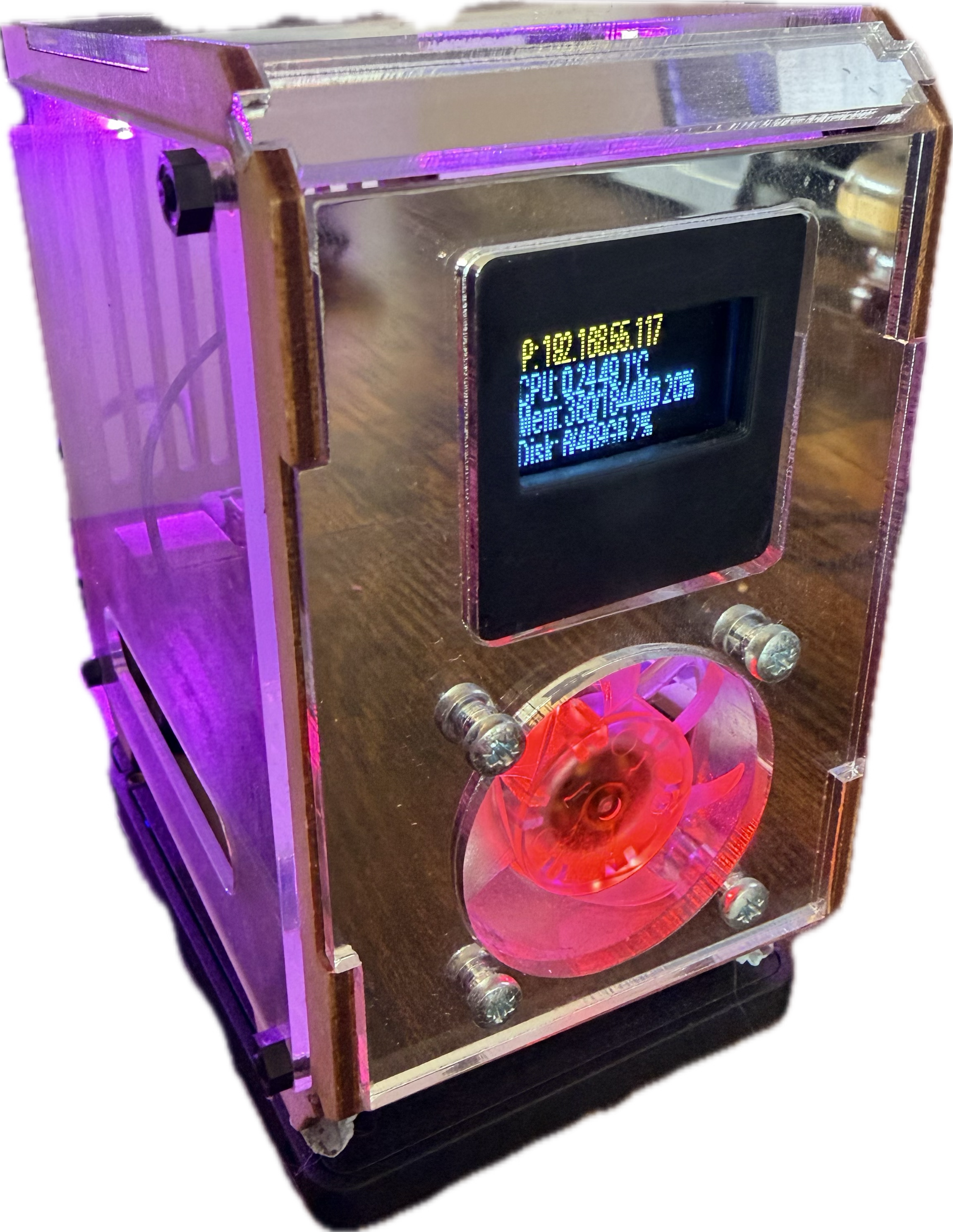
I had a Raspberry Pi 4 sitting on my desk in a cool enclosure doing nish. It was cheap to run, always on, and the perfect candidate. I started with the official Docker instructions ↗, and leaned on this video ↗ walkthrough to validate my approach.
My requirements going in:
- Hosted locally, but accessible from anywhere
- Secured, only I should be able to reach it
- Works across all my devices
This was my first time self-hosting something that needed to be reachable from outside my home network, so it turned into an education in networking and security fundamentals. I manage speariett.com through Cloudflare, but the approach here translates to any hosting setup. There are two realistic paths to making a local service publicly accessible.
Port Forwarding#
Port forwarding lets specific services on a local network be reached from outside, without exposing everything. The idea is simple: a request hits wallabag.speariett.com, Cloudflare routes it to my home IP and a specific port, and whatever’s listening on that port, Wallabag, or a reverse proxy sitting in front of it, handles the request.
In practice, this fell apart immediately. Port forwarding requires a static public IP address, and my ISP puts me behind CGNAT (Carrier Grade NAT), which means I don’t get one. My address is shared with neighbours and changes over time. I could open a port on my router, but the traffic would never reach me, the ISP blocks it before it gets there.
I could have paid my ISP a small fee for a static IP. But the more I read, the more that seemed like a bad idea. A public home IP is a target: bots scan it continuously for vulnerabilities, a DDoS attack would take down my entire connection, and without very careful configuration, traffic could bypass Cloudflare’s access controls entirely.
The analogy that clicked for me: port forwarding is drilling a hole in your front door and handing out the address. With CGNAT, your “house” is actually an apartment inside a building owned by your ISP. You can drill a hole in your apartment door, but the ISP keeps the front of the building locked. Visitors arrive, get blocked, and never reach you. But either way, you are drilling a hole in your front doo and potential letting strangers in when they come knocking.
Cloudflare Tunnel#
Cloudflare Tunnel flips the model. Instead of opening a hole inward, you dig an outbound tunnel from inside your network to Cloudflare’s edge. Running cloudflared locally initiates a persistent outbound connection, the same kind of traffic as browsing a website, and tells Cloudflare: if anyone reaches my public hostname, send the request down this tunnel.
This sidesteps the static IP problem entirely. No ports are open. When someone visits wallabag.speariett.com, they hit Cloudflare first. Cloudflare verifies their identity, then forwards the request down the tunnel to the local service.
Setting it up is straightforward. In the Cloudflare Zero Trust dashboard, go to Networks → Tunnels → Create a tunnel, give it a name, and Cloudflare generates a token. You run cloudflared as a Docker container, passing the token in as an environment variable:
tunnel:
  image: cloudflare/cloudflared:latest
command: tunnel --no-autoupdate run --token ${CLOUDFLARE_TUNNEL_TOKEN}Once the container is running, it shows as a healthy connected tunnel in the dashboard. You then configure routing, which hostnames map to which internal services. Mine uses a single wildcard rule:
| Hostname | Service |
|---|---|
*.speariett.com | http://caddy:80 |
All subdomains route through the tunnel to Caddy, which handles internal routing from there. The http:// is intentional. I was briefly confused about whether I needed HTTPS between the tunnel and my local services, I don’t. The browser-to-Cloudflare leg is encrypted over HTTPS. The Cloudflare-to-local leg travels through the tunnel, which is encrypted at the transport level. By the time a request reaches Caddy inside the Docker network, it arrives as plain HTTP, which is fine, it never crossed the open internet unencrypted. Adding TLS certificates inside the local network would be complexity with no meaningful security gain for this use case.
Note: this works because the tunnel container and Caddy are on the same Docker network, so caddy resolves correctly. The port is also optional, it’s inferred from http.
Reverse Proxy#
I’ve just introduced Caddy without explaining it. For this specific setup, a reverse proxy isn’t strictly required, you could point the tunnel directly at Wallabag with http://wallabag. But that would mean every new service I add requires a change in Cloudflare’s config. Switch away from Cloudflare one day, and everything needs re-wiring. A reverse proxy keeps that routing logic local and portable.
The concept: a regular proxy sits in front of users, funnelling their outbound traffic (think corporate networks). A reverse proxy does the same thing from the other direction, it sits in front of your servers, accepts incoming requests, and decides which internal service handles each one.
The reason it’s useful comes down to ports. Every service listens on its own port internally: Wallabag on 8080, something else on 8081, and so on. But browsers expect to connect on port 80 (HTTP) or 443 (HTTPS), no port numbers in the URL. The reverse proxy is the single thing listening on those standard ports, using the hostname in each request to route traffic to the right backend. wallabag.speariett.com goes to Wallabag; someotherservice.speariett.com goes somewhere else, all through the same entry point.
I chose Caddy because the config is incredibly simple. The entire Wallabag configuration:
http://wallabag.speariett.com
reverse_proxy wallabagZero Trust Access#
A tunnel gets traffic to your service. It doesn’t control who can access it. Without an access policy, the tunnel would serve Wallabag to anyone who knew the URL. Cloudflare’s Zero Trust Access layer sits in front of the tunnel as a bouncer, requests only pass through if they satisfy the policy.
My policy has two rules, and a request must satisfy at least one:
Email authentication. Cloudflare sends a one-time code to my personal email address. Sessions last 24 hours before requiring re-authentication. This was my initial setup, but I hit a problem: the Wallabag iOS app doesn’t play nicely with Zero Trust ↗, which broke saving articles from my phone, one of my core requirements.
WARP device check. WARP is Cloudflare’s VPN client (available on iOS, Android, Mac, and Windows). When you enrol a device in your Zero Trust organisation, Cloudflare assigns it a unique ID. I enrolled my iPhone and added its device ID as an additional Access rule, meaning my phone is always recognised and let through, regardless of the iOS app’s authentication quirks.
To set this up: install the Cloudflare One Agent app, open it, select Zero Trust, and enter your team name from the Cloudflare dashboard. Authenticate when prompted, and Cloudflare will enrol the device and assign it an ID. Find it under My Team → Devices, copy the ID, and add it as an Include rule in your Access policy.
I then added 2FA to Wallabag itself via Ente Auth. You’d think I was protecting nuclear launch codes, not recipes I want to try at the weekend.
Under the Hood#
Building this was as much a learning exercise as it was a practical project. Along the way I picked up a few things that I hadn’t needed to think about before, concepts that are easy to gloss over when you’re just following a tutorial, but that actually matter once you’re responsible for the whole thing yourself.
Named Volumes vs Bind Mounts#
Both named volumes and bind mounts solve the same surface-level problem: persisting data beyond a container’s lifecycle. But they represent two different philosophies about who owns that data.
A named volume hands control entirely to Docker. It creates and manages storage somewhere in /var/lib/docker, and your only interface to it is through Docker itself. A bind mount does the opposite, you point Docker at a specific path on the host, and the container sees exactly what’s there.
For the database, I use a named volume:
volumes:
- db_data:/var/lib/postgresql/dataThere’s no reason for me to reach into Postgres’s data directory from the host, that’s Docker’s concern.
Wallabag uses both:
volumes:
  - ./services/wallabag/setup.sh:/setup.sh
- wallabag_images:/var/www/wallabag/web/assets/imagesThe images directory (where Wallabag caches article images) gets a named volume, again, no need to touch it from the host. But setup.sh is a bind mount, deliberately. It’s a file I own, iterate on, and need to be able to edit directly from the project directory. The general principle: if it’s data the container owns, use a named volume; if it’s configuration you own and might change, use a bind mount.
The Database Init Script#
Postgres has a built-in first-run initialisation mechanism: any scripts placed in /docker-entrypoint-initdb.d/ inside the container are executed automatically, in filename order, the very first time the container starts against an empty data directory. 01_create_users_and_database.sh lives on the host at ./infrastructure/db/init/ and gets bind-mounted into that directory:
volumes:
- ./infrastructure/db/init:/docker-entrypoint-initdb.dThe script creates the Wallabag database with credentials pulled from environment variables, nothing sensitive is hardcoded. It runs exactly once. On subsequent restarts, Postgres sees the data directory is already populated and skips init entirely, so there’s no risk of it trying to recreate databases that already exist.
What Went Wrong#
The Startup Script and the Migrations Deadlock#
Getting Wallabag running against an external Postgres container was where things got frustrating. The symptom: a 500 error and this in the logs:
SQLSTATE[42S02]: Base table or view not found: Table 'wallabag_internal_setting' doesn't existThis is a known issue ↗. Wallabag’s Docker image assumes it’s managing its own database lifecycle. When you bring an external Postgres container into the picture, the default entrypoint doesn’t reliably run schema migrations, leaving the database half-initialised. The fix is:
bin/console doctrine:migrations:migrate --env=prod --no-interactionBut this creates a deadlock: you can only run migrations after Wallabag has started, and Wallabag can’t start because the migrations haven’t run. The manual workaround, exec into the container and run the command by hand, worked, but it was fragile and annoying. I didn’t want a checklist of manual steps every time I deployed.
So I wrote a custom entrypoint script, setup.sh, that takes ownership of the startup sequence. Rather than replacing Wallabag’s official entrypoint, it wraps it, starting Wallabag as a background process, waiting for it to initialise, running migrations on top, then handing control back.
Step by step:
1. Wait for Postgres to actually be ready. depends_on with a healthcheck tells Docker Compose to wait until Postgres passes its health check before starting Wallabag, but a passing health check only means the process is accepting connections. It doesn’t mean our specific database and user have finished being provisioned. The script polls pg_isready to be sure:
until pg_isready -h "$SYMFONY__ENV__DATABASE_HOST" -p "$SYMFONY__ENV__DATABASE_PORT" \
  -U "$SYMFONY__ENV__DATABASE_USER"; do
  sleep 2
done2. Fix permissions. The script runs as root, but Wallabag runs as nobody. The migration process creates files in Symfony’s var/ directory owned by root, and when Wallabag starts as nobody a moment later, it can’t write to them:
chown -R nobody:nobody /var/www/wallabag/var3. Start Wallabag in the background. The official entrypoint runs as a background process, with its PID captured so we can hand control back to it later. Also pipes the logs to a file so we can use them in the next bit.:
/entrypoint.sh wallabag 2>&1 | tee /tmp/wallabag.log &
WALLABAG_PID=$!4. Run migrations. The script waits for the wallabag is ready! log line, then runs migrations. They’re idempotent, so there’s no risk in running them on every restart.
bin/console doctrine:migrations:migrate --env=prod --no-interaction5. Create the admin user, once. Without a guard here, every restart would attempt to create a duplicate user and fail:
USER_EXISTS=$(bin/console wallabag:user:list --env=prod 2>/dev/null | grep "^ *$WALLABAG_USER " || true)

if [ -z "$USER_EXISTS" ]; then
    bin/console fos:user:create "$WALLABAG_USER" "${WALLABAG_USER}@example.com" "$WALLABAG_PASSWORD" --env=prod
    bin/console fos:user:promote "$WALLABAG_USER" ROLE_SUPER_ADMIN --env=prod
fi6. Hand control back. The script returns the foreground to the backgrounded Wallabag process, which runs for the container’s lifetime:
wait $WALLABAG_PIDThe result: a stack that comes up cleanly on first run, restarts safely without intervention, and handles migrations automatically.
The setup took longer than I’d like to admit, but the result is exactly what I wanted: a self-hosted, programmatically accessible read-it-later tool that works securely from any device, anywhere. The next step is wiring up the Wallabag API to Notion, so saved articles actually become actionable instead of just piling up in a different silo.
Though I’ll admit, I do wonder whether building all this has been one elaborate procrastination from actually reading the articles. I guess only time will tell.
Footnotes#
-
Instapaper’s API ↗ only allows pushing new articles, there’s no way to pull your library, which ruled out the Notion integration I wanted. There are unofficial Python wrappers ↗, but they’re brittle and unsupported. ↩